Operational Guide for Sovereign AI Platform: From Basic Conversation to Comprehensive Multi-Language Real-Time Translation
Detailed guide for general users covering the entire process from basic conversation to practical multi-language applications.
August 29, 2026 135
Videos
The "Sovereign AI Platform" is an intelligent service interface centered around a membership account, allowing general users to interact with Artificial Intelligence (AI) through simple steps. The usage process includes registration and logging in, followed by setting up personal profile information to optimize the service experience. Its main function is the "Sovereign AI Voice Chatroom," where users can choose to ask questions via text or voice. Operationally, one only needs to remember the simple steps: "Login -> Enter AI -> Press Microphone -> Speak -> Send." Furthermore, the platform integrates real-time translation functionality. Users do not need external tools; they can select source and target languages within the chatroom to achieve cross-cultural communication in multiple languages through voice or text input, making AI a daily usable smart assistant.
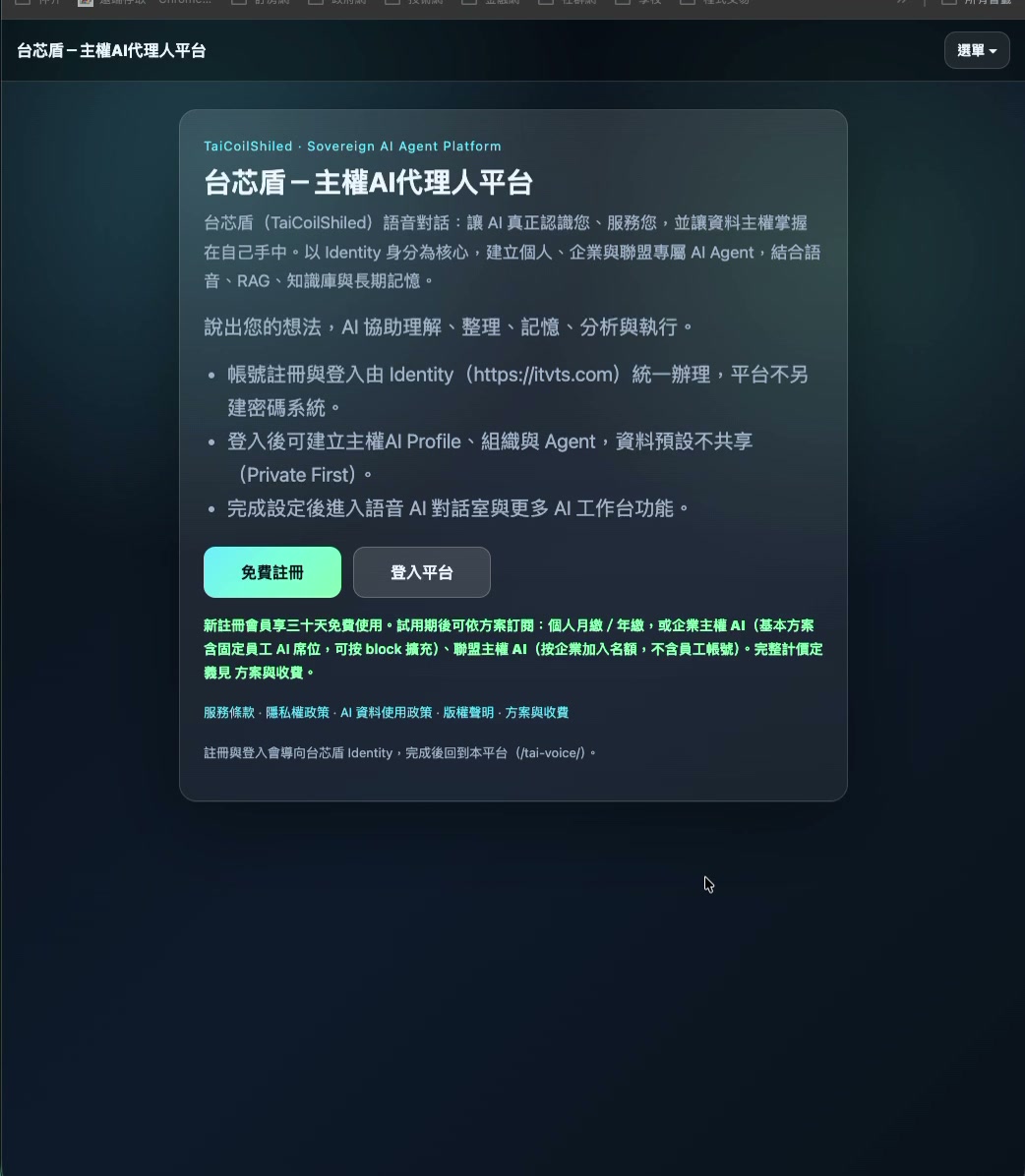
Sovereign AI Agent - Operation Manual AI Sovereign AI Platform - General Member Operating Instructions I. Platform Introduction "The AI Sovereign AI Platform" is an intelligent service platform centered on the member's personal account. After completing registration and logging in, members can create their own Profile (personal data) and enter the Sovereign AI Voice Chatroom to engage in natural conversations with the AI through text or voice. The overall operation process is very simple:
Register as a member → Log in to the platform → Create a Profile → Enter Sovereign AI → Open the voice chat room → Converse with AI → Check history records. II. Step 1: Registering as a Member. When using the platform for the first time, please click on: "Register". Fill in your basic membership information according to the screen, such as: • Name • Email • Login Account • Password • Other basic information required by the platform. After confirming the data is correct, click on: "Complete Registration". You can then use your membership account to log in to the platform. III. Step 2: Logging in as a Member. After you reach the platform homepage, click: "Member Login". Enter: Account/Email → Password → Log In. After successful login, you can access exclusive member functions. IV. Step 3: Setting up Profile Personal Information After logging in for the first time, it is recommended to first enter:
"Profile/Personal Information." The Profile is the member's basic personal settings within the sovereign AI platform. Members can confirm or set their: • Display Name • Basic Personal Information • Email • Personal Preferences • AI-related Settings • Personalized data provided by other platforms. After completing the settings, click "Save." Afterward, the sovereign AI will provide services that better meet the member's needs, based on the personalized settings allowed by the platform. V. Step 4: Entering "Sovereign AI" After completing the Profile, return to the member's main screen. Click "Sovereign AI" to enter your own AI interface. The sovereign AI is the main entry point for members to interact with the AI, and you can use text input or Voice input to converse with the AI. VI. Step 5: Entering the Voice Chatroom
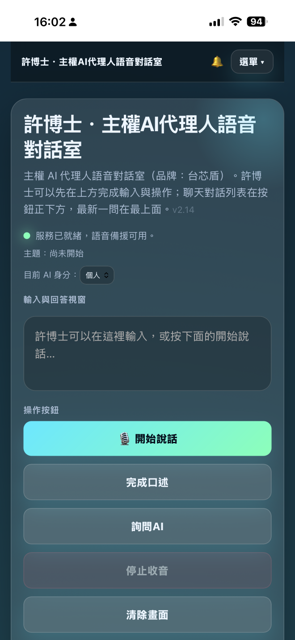
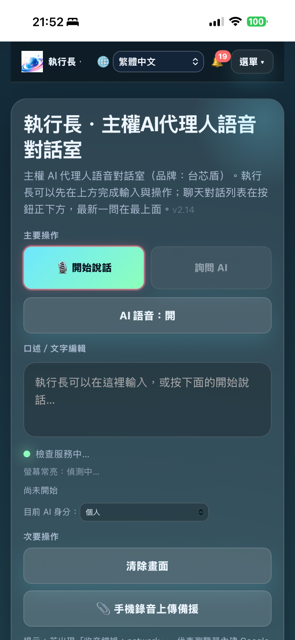
After entering the sovereign AI, select "Voice Chat Room" to activate the voice dialogue function. The basic operation sequence for the Voice Chat Room is: Open the chat room → Click the microphone → Start speaking → Complete voice input → Complete dictation → Send out → Ask AI for an answer
VII. How to Use the Voice Chat Room Button 1. Microphone Button: Click the "Microphone" [Start Speaking] button to begin speaking. The system will receive the member's voice content and convert it into text. For example: "Please help me summarize today's work priorities." After finishing speaking, you can end the voice input. 2. Text Input Area: In addition to voice, you can also directly enter questions using a keyboard. For example: "Please help me plan tomorrow's work schedule." Therefore, members can freely choose between Voice Input and Text Input. 3. Submit Button -> [Finish Dictation] After confirming that the voice recognition or text content is correct, click: [Finish Dictation] -> [Ask AI]. Only then will the AI officially receive this question and begin answering. Therefore, it is recommended to use the sequence: [Start Speaking] → Confirm or Edit Text → [Finish Dictation] → [Ask AI] → Wait for AI Answer 4. Stop/Cancel: Pressing [Start Speaking] a second time will cancel.
If the voice input is incorrect, or if you temporarily don't want to submit it, press [Start Speaking] a second time to cancel and restart the voice input. 5. New Conversation: If you are ready to discuss something new, after the AI finishes answering, you can continue asking questions by selecting: New Conversation: Continue asking questions after the AI answers. Establishing new chat content. It is recommended to use different conversations for different topics, which makes future searching and management clearer. 6. History Record: Below the window is the "Conversation History" where you can view past discussions with the sovereign AI. Members can use the history record to find previously discussed: • Work contents • Questions and answers • AI suggestions • Personal records • Past conversations. You do not need to start over every time. VIII. Correct Voice Operation Sequence: General members only need to remember the following operations: ① Log in as a member
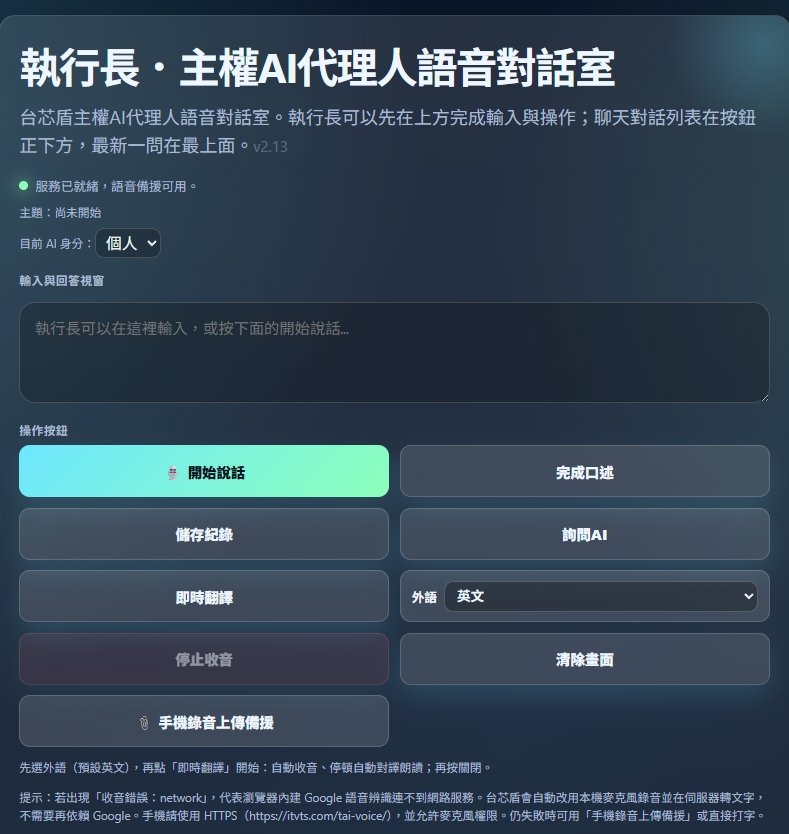
↓ ② Enter Sovereign AI ↓ ③ Click "Voice Chatroom" ↓ ④ Click Microphone ↓ ⑤ Start Speaking ↓ ⑥ Complete Voice Input ↓ ⑦ Check Recognized Text ↓ ⑧ Click "Send" ↓ ⑨ AI Analyzes Question ↓ ⑩ AI Responds ↓ ⑪ Continue Voice or Text Conversation Nine. What if I change the question? If you are still discussing the same matter, you can keep speaking or typing.
For example: First sentence: "Help me plan a two-day, one-night trip to Taichung." Next sentence: "Can I add an afternoon tea on the second day?" The AI can continue answering based on the previous conversation. If you have completely changed the topic, you can select "New Conversation" -> press => [Start Speaking] to manage different matters separately. X. General Member Complete Usage Flow First Time Use: Register → Login → Profile → Save Personal Information → Sovereign AI → Voice Chatroom Daily Use: Login → Sovereign AI → Voice Chatroom → Microphone → Speak → Confirm → Send → AI Reply Reviewing Again: Login → Sovereign AI → History Record → Select Past Conversation → Continue Using XI. Simple Mnemonic for First-Time Users: Just need to remember five actions: "Login, enter AI, press microphone, speak, send." No need to learn complex AI commands. You can talk directly, like you're talking to a real person: "Help me organize this matter." "How should I handle this problem?"
"Please summarize the content just now into key points." "Please continue to explain." "Please explain using a simpler method." Sovereign AI will respond according to the content entered by the member. XII. Platform Operation Flowchart Member Registration ↓ Member Login ↓ Profile Personal Data ↓ Sovereign AI ↓ Select Voice Chatroom ↓ Microphone Voice Input / ⌨ Text Input ↓ Confirm Content ↓ Submit ↓ AI Understanding and Analysis
↓ AI ↓ Continue Conversation / Start New Chat / View History. The most important usage principle: Sovereign AI is designed to let general members use it directly without needing to understand AI technology. Members only need to: "State what they want to ask, then press send." The platform handles voice recognition, AI understanding, answering, and conversation records, making the AI a smart assistant that members can use directly in their daily lives => Sovereign AI.
The AI Sovereignty voice chat room offers not only the ability to converse with the AI in Chinese or text, but also real-time translation and multi-language selection. Users don't need to open separate translation software to communicate across languages in the chat room. I. Where is the real-time translation function? Access: Member Login → AI Sovereignty → Voice Chat Room. In the functional button area below the chat room, you can find "Real-time Translation." Clicking it activates the real-time translation function. II. First time using real-time translation Operation steps: ① Enter the voice chat room ↓ ② Click "Real-time Translation" ↓ ③ Select the language to use ↓ ④ Select the target language for translation
↓ ⑤ Click the microphone. ↓ ⑥ Start speaking. ↓ ⑦ System recognizes voice. ↓ ⑧ Automatically translates. ↓ ⑨ The screen displays the translation result. III. How to select multiple languages? Click "Language" below the chat room to open the language selection function. Select the language you need from the list of languages currently provided by the platform, for example: • Traditional Chinese • English • Japanese • Korean • French • German • Spanish • Thai • Vietnamese • Indonesian • Other supported platform languages. After selecting, the system will translate using the chosen language.
IV. Setting "My Language" and "Other's Language" If the platform offers two-way real-time translation, it is recommended to first confirm two languages: My Language: Traditional Chinese Other's Language: English For example: Traditional Chinese → English means that the user can speak Chinese directly, and the system will translate the content into English. If reverse communication is needed: English → Traditional Chinese, then the English spoken by the other party can be translated into Traditional Chinese.V. Using Voice for Real-Time Translation After setting the language, click: Microphone => [Real-time Translation] and speak the content you want to translate directly. For example, if the user says: "What time can I check out tomorrow morning?" The system performs speech recognition and then translates it into the selected target language. If English is chosen, the corresponding English translation will be generated. VI. Text can also use real-time translation

If voice input is inconvenient, you can also type text directly in the chat room. Operation method: Type text → Select target language → Instant translation → View translation results. Therefore, instant translation can be paired with: voice input or ⌨ text input. VII. Changing to other countries' languages. If originally set to: Traditional Chinese → English, and you now need to communicate with Japanese users, simply click again: language to change the target language to Japanese, and it can switch to: Traditional Chinese → Japanese. You do not need to leave the chat room or log in again. VIII. Standard operation procedure for instant translation General members can remember: Select language → Press microphone → Start speaking → AI recognition → Instant translation → View results
The complete process is: Sovereign AI ↓ Voice Chatroom ↓ Open "Real-time Translation" ↓ Select source language ↓ Select target language ↓ Click the microphone icon ↓ Start speaking ↓ AI voice recognition ↓ AI real-time translation ↓ Display translated content ↓ Continue conversation. IX. Usage methods for different languages by both parties.
For example: A user: Traditional Chinese B user: English A can speak Chinese directly: Chinese voice → AI recognition → English translation B user: Speaks English: English voice → AI recognition → Chinese translation Therefore, even if both parties do not use the same language, they can utilize sovereign AI for cross-language communication.X. Notes on UsageTo improve speech recognition and translation accuracy, it is recommended to: Maintain a natural speaking pace. Do not speak sentences that are too long at once. Pronounce names of people, companies, place names, and professional terminology clearly whenever possible. If the surrounding environment is too noisy, use text input instead. When translating important commercial, legal, or professional content, please reconfirm the translation result before sending. If the language selection is incorrect, click the language icon again to switch. XI. The Simplest Usage Mantra: General members only need to remember: “Select Language → Press Microphone → Speak → View Translation.” No need to install separate translation software or input complex AI commands. Through the sovereign AI voice chatroom, you can use voice, text, and multi-language real-time translation functions for more natural cross-language AI dialogue.
Taiwan Coil Shielded Technology (TCST)
https://itvts.com
Read next
More from「許健泰博士」








Related articles

Popular articles






Share article 1
Reward the author
Enjoyed this article? Log in to send a reward to encourage the author to continue creating quality content.
Log in to tip